Save search results to a folder - Using Search Folders
AppliTrack allows you to define Search Folders which can be thought of as a way to easily view a set of applicants that meet a specific set of criteria.
Search Folders behave similarly to normal folders in AppliTrack; they can be viewed in the "My Account" tab; they can have any name you choose; they can be shared with other AppliTrack users. The most significant difference is that applications exist in a Search Folder only if they meet the criteria defined by the search folder. It is not possible to explicitly add an individual application to a Search Folder.
For example, you may be interested in continually viewing all active and completed applicants that you have not yet reviewed that are proficient in the Spanish language. To do this, a Search Folder may be created according to the following steps:
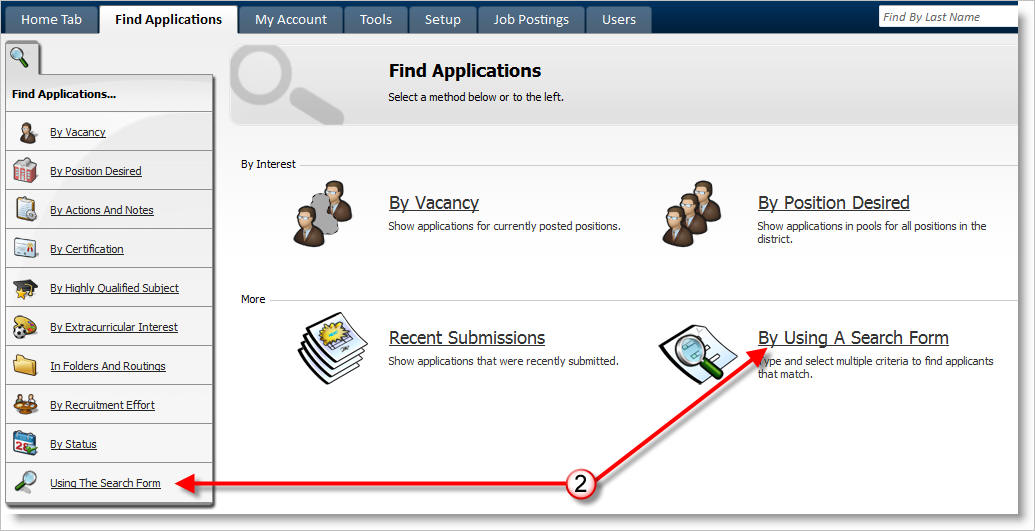
1) Choose "Find Applications"
2) Click "By Using A Search Form"
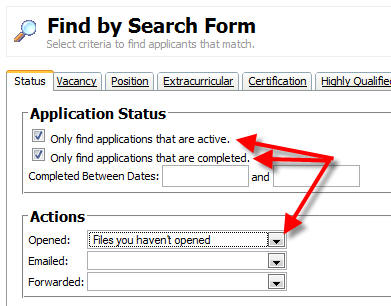
3) In the "Status" tab of the Search form, ensure the following criteria are set:
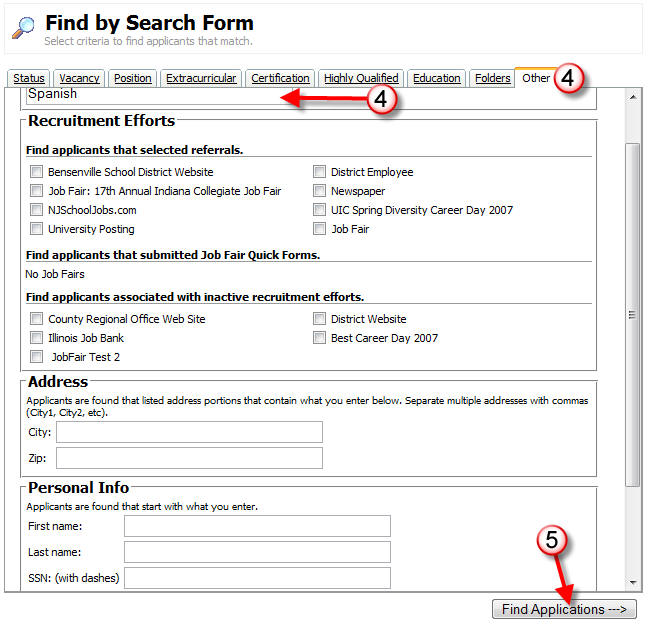
4) Select the "Other" tab, and enter Spanish in the "Languages" input box
5) Click the "Find Applications->" button at the lower right of the screen.
To create the Search Folder with your search results:
6) Select the "Batch Actions and Tools" tab from the left-hand panel of your screen
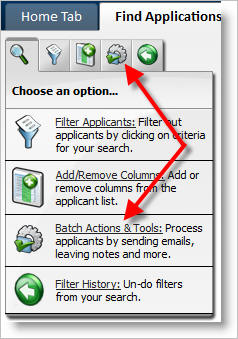
7) Click "Save Search"
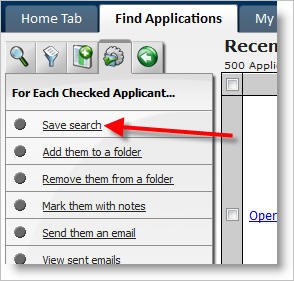
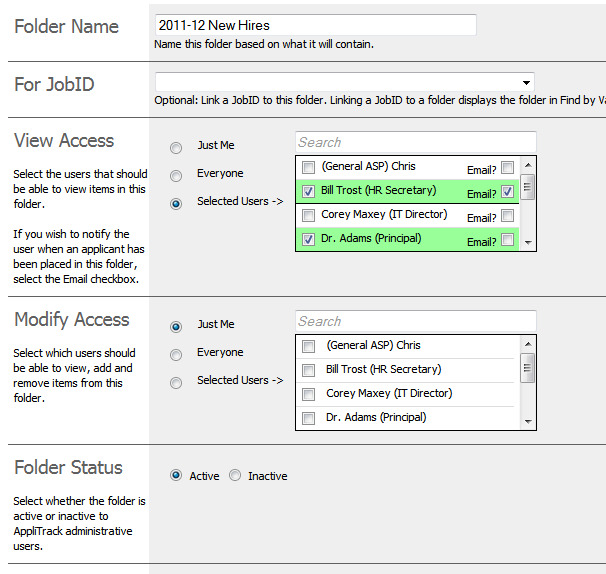
8) Enter the relevant details for the new folder, and click "Save"
9) Review the contents of your new Search Folder by selecting the "My Account" tab.
